Ads 468x60px

Pages

Tampilkan postingan dengan label windows. Tampilkan semua postingan

Senin, 17 Februari 2014

Windows Live Writer Wave3 Beta

Veja o que você pode esperar e encontrar neste novo beta:

Imagem e vídeo aprimoramentos

  • Inserir vídeos de Soapboxe YouTube
  • Carregar vídeos para Soapbox e YouTube
  • É fácil deixar suas fotos incríveis em seu blog porque você pode cortar, redimensionar, girar e alinhá-las. Você também pode adicionar efeitos legais como novas bordas e inclinação da imagem.
  • Adicional fronteira estilos de imagens (como a reflexão e cantos arredondados)
  • Suporte para LightBox  e outros efeitos de visualizar imagens (como Slimbox, Smoothbox, e outros)
  • Suporte para centralizar a imagens

 Blog autoria aprimoramentos

  • Correção ortográfica em mais línguas: Holandês, Inglês, finlandês, francês, alemão, hindi, italiano, coreano, Português (Brasil), Português (Portugal), sérvio-cirílico, sérvio-latim, espanhol e sueco
  • Auto Linking
  • Smart quotes/caracteres tipográficos
  • Word count

 Experiência e melhorias

  • Novas ferramentas torna mais facil os comandos - como fonte de formatação - prontamente disponível
  • Guias de vista comutação
  • Melhorado com a categoria de busca e controle-down tipo de filtragem
  • Novo look and feel

    Download : Windows Live Writer Wave3 Beta

  • Read More..

    Rabu, 05 Februari 2014

    Os 200 melhores temas para Windows XP


    000ca71b_mediumPrimeiro de tudo, este pacote é projetado para aqueles que não querem mudar o registro de programas de terceiros, que consomem preciosos recursos de seus computadores. Os arquivos são padrão do Windows XP.
    Para assegurar que esses temas possam ser utilizados a necessidade do programa Uxtheme Multi-Patcher. Este patch substitui Uxtheme.dll biblioteca e, assim, permitir que se esqueça do Style XP. O resultado: decora o seu desktop para fazê-lo sem necessidade de nenhum programa.
    No caso, se alguém não sabe onde colocar todos esses arquivos, o arquivo deve ser movido para uma pasta:
    C: WINDOWS Resources Themes
    No arquivo, clique com o botão direito do mouse e escolha "Extrair para a pasta atual", espero que gostem.


    Download


    Read More..

    Rabu, 29 Januari 2014

    Atualizações para o Windows – Janeiro de 2009

    Windows XP
    Atualização para o Windows XP (KB955535)
    Instale esta atualização para resolver um problema em que o redirecionador de SMB (Bloco de Mensagens do Servidor) atinge o tempo limite em um sistema multiprocessador usando o Windows XP.

    Atualização para o Windows XP (KB955704)
    Instalar esta atualização para adicionar suporte ao formato de sistema de arquivo exFAT.

    Atualização para o Windows XP (KB960680)
    Instale esta atualização para converter para o euro as moedas usadas na Eslováquia, Eslovênia e Malta e para atualizar o símbolo da moeda turca do Yeni Türk Lirası (YTL) para o Türk Lirası (TL).

    Windows XP x64

    Atualização para o Windows XP x64 (KB960680)
    Instale esta atualização para converter para o euro as moedas usadas na Eslováquia, Eslovênia e Malta e para atualizar o símbolo da moeda turca do Yeni Türk Lirası (YTL) para o Türk Lirası (TL).

    Windows Vista

    Atualização para o Windows Vista (KB960680)
    Instale esta atualização para converter para o euro as moedas usadas na Eslováquia, Eslovênia e Malta e para atualizar o símbolo da moeda turca do Yeni Türk Lirası (YTL) para o Türk Lirası (TL).

    Atualização para o Windows Vista (KB960728)
    Instale esta atualização para permitir solicitações que contenham símbolos de porcentagem sem saída (%) sejam usadas para ignorar o módulo de filtragem de solicitação em IIS 7.0.

    Windows Vista x64

    Atualização para o Windows Vista x64 (KB960728)
    Instale esta atualização para permitir solicitações que contenham símbolos de porcentagem sem saída (%) sejam usadas para ignorar o módulo de filtragem de solicitação em IIS 7.0.

    Atualização para o Windows Vista x64 (KB960680)
    Instale esta atualização para converter para o euro as moedas usadas na Eslováquia, Eslovênia e Malta e para atualizar o símbolo da moeda turca do Yeni Türk Lirası (YTL) para o Türk Lirası (TL).

    Windows 7 Beta

    Atualização para o Windows 7 Beta (KB962236)
    Instale esta atualização para resolver alguns problemas no Media Center do Windows 7 Beta. Para maiores detalhes sobre esta atualização, consulte o artigo KB962236.
    Windows 7 x64 Beta

    Atualização para o Windows 7 Beta x64 (KB962236)
    Instale esta atualização para resolver alguns problemas no Media Center do Windows 7 Beta. Para maiores detalhes sobre esta atualização, consulte o artigo KB962236.

    Windows Server 2003

    Atualização para o Windows Server 2003 (KB960680)
    Instale esta atualização para converter para o euro as moedas usadas na Eslováquia, Eslovênia e Malta e para atualizar o símbolo da moeda turca do Yeni Türk Lirası (YTL) para o Türk Lirası (TL).

    Windows Server 2003 x64

    Atualização para o Windows Server 2003 x64 (KB960680)
    Instale esta atualização para converter para o euro as moedas usadas na Eslováquia, Eslovênia e Malta e para atualizar o símbolo da moeda turca do Yeni Türk Lirası (YTL) para o Türk Lirası (TL).
    Windows Server 2003 IA64

    Atualização para o Windows Server 2003 IA64 (KB960680)
    Instale esta atualização para converter para o euro as moedas usadas na Eslováquia, Eslovênia e Malta e para atualizar o símbolo da moeda turca do Yeni Türk Lirası (YTL) para o Türk Lirası (TL).

    Windows Server 2008

    Atualização para o Windows Server 2008 (KB960680)
    Instale esta atualização para converter para o euro as moedas usadas na Eslováquia, Eslovênia e Malta e para atualizar o símbolo da moeda turca do Yeni Türk Lirası (YTL) para o Türk Lirası (TL).

    Atualização para o Windows Server 2008 (KB960728)
    Instale esta atualização para permitir solicitações que contenham símbolos de porcentagem sem saída (%) sejam usadas para ignorar o módulo de filtragem de solicitação em IIS 7.0.

    Windows Server 2008 x64

    Atualização para o Windows Server 2008 x64 (KB960728)
    Instale esta atualização para permitir solicitações que contenham símbolos de porcentagem sem saída (%) sejam usadas para ignorar o módulo de filtragem de solicitação em IIS 7.0.

    Atualização para o Windows Server 2008 x64 (KB960680)
    Instale esta atualização para converter para o euro as moedas usadas na Eslováquia, Eslovênia e Malta e para atualizar o símbolo da moeda turca do Yeni Türk Lirası (YTL) para o Türk Lirası (TL).

    Windows Server 2008 IA64

    Atualização para o Windows Server 2008 IA64 (KB960680)
    Instale esta atualização para converter para o euro as moedas usadas na Eslováquia, Eslovênia e Malta e para atualizar o símbolo da moeda turca do Yeni Türk Lirası (YTL) para o Türk Lirası (TL).

    Atualização para o Windows Server 2008 IA64 (KB960728)
    Instale esta atualização para permitir solicitações que contenham símbolos de porcentagem sem saída (%) sejam usadas para ignorar o módulo de filtragem de solicitação em IIS 7.0.

    Read More..

    Sabtu, 17 Agustus 2013

    Configuring Windows firewall


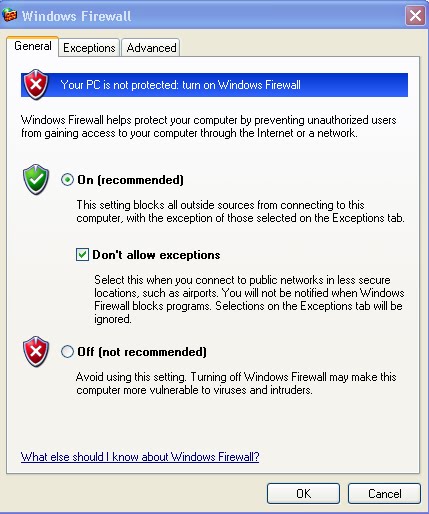
    Configuring the firewall to allow certain programs to work through it is not always the best thing to do, because it will expose your computer more to the outside world and increase your risk of getting infected with something. However, in the short term or for an application that you must use, you can make it work through the firewall. In the original version of the firewall, the only possibility was to specify a port number to open. Now, it is much easier to make an application work though the firewall. Instead of typing in a port number, users can just select the program on their computer that they want to have accessed through the firewall.

    This capability makes the firewall configuration much more user-friendly. Additionally, in Service Pack 2, Microsoft left in the old way to open up the firewall manually by entering in a port number, so that users still have total control if they really want it. The end result of these two methods is the same; the only difference is the ease of use for less experienced Windows XP users.

    Using the new feature to open up holes in the firewall is pretty cool. Follow these steps to open up the firewall for a specific application:

    1. Open up Network Connections again by clicking the Start Menu and selecting Run. Then, type firewall.cpl in the box and click OK.

    2. When the Windows Firewall settings window loads, click the Exceptions tab.

    3. You will see a list of all of the different exceptions that are currently enabled, as signified by the check in the box. By default, a few applications will be enabled. I recommend that you uncheck all of the entries unless you use them. If not, then you are just taking an unnecessary risk by leaving those doors open.

    4. If you want to add an application to the exception list so that it will be able to accept connections and data from the outside world, such as an Instant Message program that wants to receive files from other users, just click the Add Program button.

    5. Select the name of the program from the list or click the Browse button on the Add a Program window to select the executable of the application that you want to open to the world.

    6. When you are finished selecting the program that you want to be able to access through the firewall, click OK and it will appear on the list.

    7. Now that the program is on the list, just check the box next to the name to open up the firewall for the application.

    8. Click OK to activate your new firewall settings.

    Windows Firewall also includes settings on how you want your computer to respond when several different standard Internet messages are sent to it. For example, one setting you can specify is the ping command, which is a network command used to estimate turnaround time between sending data to a computer and receiving a response. All of these settings are found on the Advanced tab by clicking the Settings button under the ICMP section. The screen is pretty straightforward. If you want your computer to have a stealth presence on the Web, as I mentioned earlier, you should uncheck all of the entries listed on the ICMP tab.
    Read More..

    Jumat, 16 Agustus 2013

    Max Windows XP Speed

    Following this step for windows xp max speed

    1.) Following is a registry containing a few registry modifications, which are completely safe and can increase the performance of Windows. Just download the attached ZIP file, extract it and then run the file:

    Tweak Windows XP

    Restore Default Settings (Use this file if you want to restore default Windows settings)

    2.) Right-click on Desktop and select Properties, Now in the new window goto Appearance tab and click on Effects button. Now in the new opened window uncheck the following options:

    a.) Use the following transition effect for menus & tooltips.
    b.) Show shadows under menus.
    c.) Show window contents while dragging. (you may remain this option checked as I hv in my screenshot. It depends upon ur choice.)
    d.) Use the following method to smooth edges of screen fonts. You may select “Standard” for this. I hv selected “Clear Type” coz I hv a TFT, it doesnt work properly for CRT monitors.

    3.) Right-click on My Computer icon on Desktop and select Properties (or press key + key), now goto Advanced tab in new window and click on Settings button in Performance section:

    Now disable all unnecessary options in Visual Effects tab, you can remain following options enabled according to your requirements:

    a.) Show window contents while dragging.
    b.) Smooth edges of screen fonts.
    c.) Use common tasks in folders (If u use the left side pane in My computer, I don’t use it.)
    d.) Use drop shadows on icon labels on the desktop. (to make the desktop icons label transparent.)
    e.) Use visual styles on windows and buttons. (If u use XP themes.)

    4.) Open Tools -> Folder Options and click on View tab:

    Now uncheck following options:

    a.) Automatically search for network folders & printers.
    b.) Display file size information in folder tips.
    c.) Display simple folder view in Explorer’s Folders list.
    d.) Show encrypted or compressed NTFS files in color.
    e.) Show pop-up description for folder and desktop icons.
    f.) Use simple file sharing.

    Other options don’t affect the system performance. You can enable/disable them according to your requirements.

    5.) Right-click on My Computer icon on Desktop and select Manage (You can also open it by typing services.msc in RUN and press Enter). Now goto Services & Applications -> Services. Here you can set a few unnecessary services to Manual, which will not start with windows and will decrease the boot time and will increase system performance. Please follow the following tutorial to know about which services can be safely set to MANUAL:

    Windows XP Services that can be Safely set to MANUAL

    6.) Type msconfig in RUN and press Enter. Now goto Startup tab and deselect the unnecessary entries, which you don’t want to start automatically with Windows, e.g. you can disable VGA driver utility, Sound Card utility, etc to speed up the startup time and to increase system performance.

    7.) Open Sound & Audio Devices in Control Panel (or type mmsys.cpl in RUN), goto Sounds tab and select No Sounds in Sound Scheme section. Or you can remain some of your favorite sounds but set Exit Windows, Start Windows, Windows Logoff, Windows Logon to (None).

    8.) For more options/tips-n-tricks, you can use TweakUI, Tuneup Utilities 2006 and gpedit.msc (Windows XP Professional built-in tool).
    Read More..

    Selasa, 13 Agustus 2013

    Error Installing Microsoft Office 2010 on Windows XP SP3

    I had some bad experiences when updating Office 2010 on Windows XP. For starters, if you have a previous version of the ServicePack 3, the program does not install. Still, if the SP version is correct, you can still have the problem of the installation program display the following message: The Windows Installer service can not update one or more protected Windows files. SFP Error: 3
    Error 1933 . In this case, the solution is to go to the office 2010 cd and access the directory office Rosebud.pt-br RbudLR.cab . Within this cab file, you will find the file Fp4autl.dll . In this file can simply make a copy to c: Programs Files Common Files Microsoft Shared web server extensions 40 bin . After copying, Windows will prompt you to insert the OS cd. Clear the screen and confirm that you want to continue the modified files to the system.
    Read More..

    Kamis, 08 Agustus 2013

    Windows Logo Key Keyboard Shortcut for Windows 7

    Windows Logo Key Keyboard Shortcut for Windows 7


    Windows 7 keyboard shortcut to simplified working in windows 7
    . (Only for windows logo key keyboard shortcut)


    Use 30 Windows 7 keyboard shortcut.

    1. Windows logo key : Open or close the Start menu.
    2. Windows logo key + Pause : Display the System Properties dialog box.
    3. Windows logo key + D : Display the desktop.
    4. Windows logo key + M : Minimize all windows.
    5. Windows logo key + Shift + M : Restore minimized windows to the desktop.
    6. Windows logo key + E : Open Computer in windows explorer
    7. Windows logo key + F : Search for a file or folder.
    8. Ctrl + Windows logo key + F : Search for computers (if youre on a network).
    9. Windows logo key + L : Lock your computer or switch users.
    10. Windows logo key + R : Open the Run dialog box.
    11. Windows logo key + T : Cycle through programs on the taskbar.
    12. Windows logo + number :Start the program pinned to the taskbar in the position indicated by the number. If the program is already running, switch to that program.
    13. Shift + Windows logo key + number : Start a new instance of the program pinned to the taskbar in the position indicated by the number.
    14. Ctrl + Windows logo key + number : Switch to the last active window of the program pinned to the taskbar in the position indicated by the number.
    15. Alt + Windows logo key + number : Open the Jump List for the program pinned to the taskbar in the position indicated by the number.
    16. Windows logo key + Tab : Cycle through programs on the taskbar by using Aero Flip 3-D.
    17. Ctrl + Windows logo key + Tab : Use the arrow keys to cycle through programs on the taskbar by using Aero Flip 3-D.
    18. Ctrl + Windows logo key + B : Switch to the program that displayed a message in the notification area.
    19. Windows logo key + Spacebar : Preview the desktop.
    20. Windows logo key + Up Arrow : Maximize the window.
    21. Windows logo key + Left Arrow : Maximize the window to the left side of the screen.
    22. Windows logo key + Right Arrow : Maximize the window to the right side of the screen.
    23. Windows logo key + Down Arrow : Minimize the window.
    24. Windows logo key + Home : Minimize all but the active window.
    25. Windows logo key + Shift+Up Arrow : Stretch the window to the top and bottom of the screen.
    26. Windows logo key + Shift + Left Arrow or Right Arrow : Move a window from one monitor to another.
    27. Windows logo key + P : Choose a presentation display mode.
    28. Windows logo key + G : Cycle through gadgets.
    29. Windows logo key + U : Open Ease of Access Center.
    30. Windows logo key + X : Open Windows Mobility Center.
    Read More..

    Rabu, 07 Agustus 2013

    Stop Windows Error Blue Screen

    Sometimes it just keeps happening over and over again and usually without any warning. Unfortunately when your computer shows up with a blue screen it will usually be set to automatically shutdown the computer or sometimes restart it. This makes many people panic because they cannot see, or even have time to write down all of the information on that particular blue screen.

    Stop the Windows error blue screen on your screen and stopping it from restarting can be done in all Windows versions. I do not use Windows XP at the moment, however I am sure that this option exists in that operating system as well. The screen shots I have taken below are from Windows Vista, but Windows 7 is very similar to this.

    How to stop the Windows error blue screen:
    Follow this step:

    1. Go to My Computer on Display and Right Click on My Computer Icon.

    2. Click on Properties.

    3. Now the systems properties will open. Click on Advanced Tab.

    4. Under the Startup and Recovery section, press on settings.

    5. The start up and recovery box will appear. Go to the System Failure section.

    6. Uncheck the box where it says Automatically restart.

    7. Press ok to finish.
    Read More..

    Jumat, 02 Agustus 2013

    Stop Windows Messenger Autostart


    click on start and click run and type REGEDIT and enter and delete the following Registry Key:

    HKEY_CURRENT_USERSoftwareMicrosoftWindowsCurrentVersionRunMSMSGS
    Read More..

    Senin, 29 Juli 2013

    Top 10 Tips Improve Windows XP Performance

    Some Time Pc is very loading. use this trick after your pc is good working. Follow This 10 Step:

    1.) Disable file indexing. The indexing service extracts information from documents and other files on the hard drive and creates a "searchable keyword index." As you can imagine, this process can be quite taxing on any system. The idea is that the user can search for a word, phrase, or property inside a document, should they have hundreds or thousands of documents and not know the file name of the document they want. Windows XPs built-in search functionality can still perform these kinds of searches without the Indexing service. It just takes longer. The OS has to open each file at the time of the request to help find what the user is looking for.

    Most people never need this feature of search. Those who do are typically in a large corporate environment where thousands of documents are located on at least one server. But if youre a typical system builder, most of your clients are small and medium businesses. And if your clients have no need for this search feature,
    I recommend disabling it.

    1 double-click the My Computer icon.
    2 right-click on the C: Drive, then select Properties.
    3 Uncheck "Allow Indexing Service to index this disk for fast file searching." and click Apply button
    4 Check at "Apply change to C:, subfolders and files" and click OK.
    If a warning or error message appears (such as "Access is denied"), click the Ignore All button.

    2.) Once a month, run a disk cleanup. Heres how:

    1 Double-click the My Computer icon.
    2 Then right-click on the C: drive and select Properties.
    3 Click the Disk Cleanup button
    4 Check at Temporary files and click OK.

    3.) Remove all spyware from the computer. Use free programs such as AdAware by Lavasoft or SpyBot Search & Destroy. Once these programs are installed, be sure to check for and download any updates before starting your search. Anything either program finds can be safely removed. Any free software that requires spyware to run will no longer function once the spyware portion has been removed; if your customer really wants the program even though it contains spyware, simply reinstall it. For more information on removing Spyware visit this Web Pro News page.

    4.) Remove any unnecessary or unused programs from the Add/Remove Programs section of the Control Panel.

    5.) Turn off any and all unnecessary animations, and disable active desktop. In fact, for optimal performance, turn off all animations.
    Windows XP offers many different settings in this area. Heres how to do it:

    1 Click Start button , Setting and Control Panel
    2 Double click on System icon
    3 Click on the Advanced tab. and Select the Settings button located under Performance.
    4 Feel free to play around with the options offered here, as nothing you can change will alter the reliability of the computer - only its responsiveness.

    6.) Visit Microsofts Windows update site regularly, and download all updates labeled Critical. Download any optional updates at your discretion. You Visit How to Update My Computer?

    7.) Update the customers anti-virus software on a weekly, even daily, basis. Make sure they have only one anti-virus software package installed. Mixing anti-virus software is a sure way to spell disaster for performance and reliability.

    8.) Do not partition the hard drive. Windows XPs NTFS file system runs more efficiently on one large partition. The data is no safer on a separate partition, and a reformat is never necessary to reinstall an operating system. The same excuses people offer for using partitions apply to using a folder instead.

    For example, instead of putting all your data on the D: drive, put it in a folder called "D drive." Youll achieve the same organizational benefits that a separate partition offers, but without the degradation in system performance. Also, your free space wont be limited by the size of the partition; instead, it will be limited by the size of the entire hard drive. This means you wont need to resize any partitions, ever. That task can be time-consuming and also can result in lost data.

    9.) If the PC has a CD or DVD recorder, check the drive manufacturers Web site for updated firmware. In some cases youll be able to upgrade the recorder to a faster speed. Best of all, its free.

    10.) At least once a year, open the computers cases and blow out all the dust and debris. While youre in there, check that all the fans are turning properly.
    Read More..